A single window
Obscura Trace opens in a single main window, titled “Obscura Trace”. You cannot open a second one: only one catalog is open at a time, by a single process, which prevents two windows from writing at the same time.
The window is divided in two:
- on the left, the navigation sidebar;
- on the right, the chosen screen, whose title is shown in the title bar.
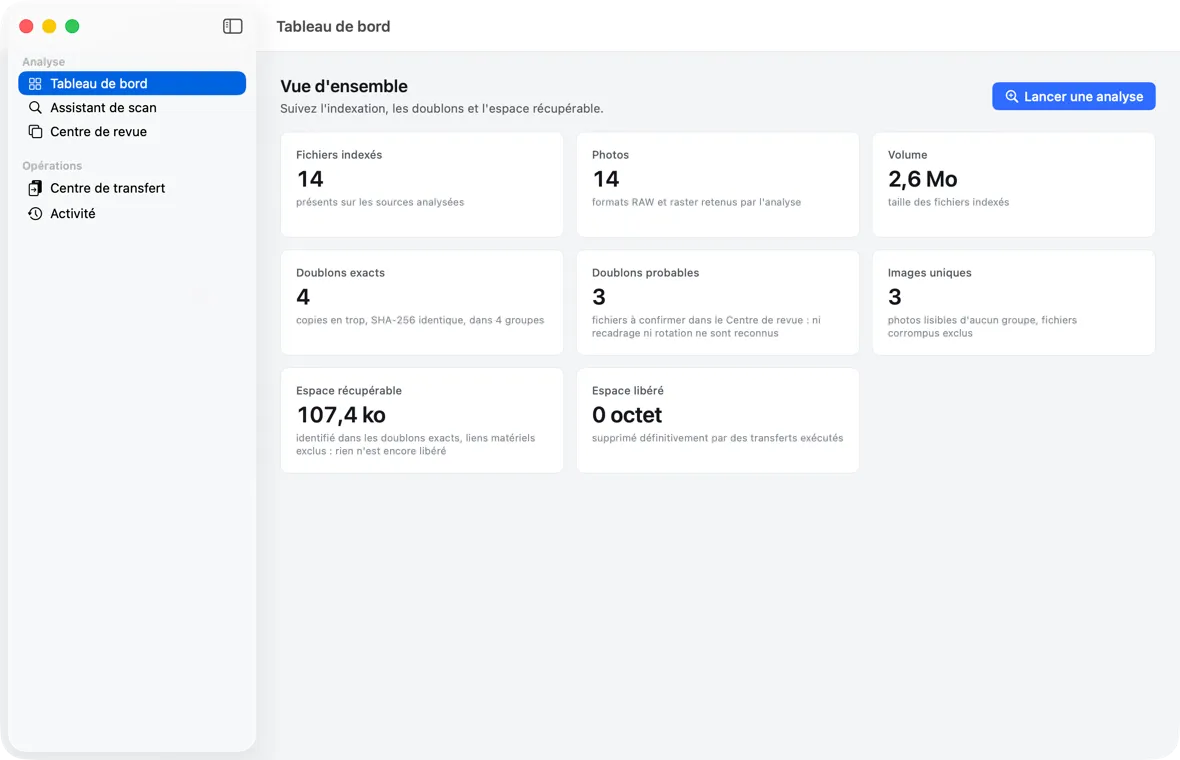 The main window: the sidebar on the left, the chosen screen on the right (here the Dashboard, after an analysis).
The sidebar
Five entries, in this order:
| Entry | What the screen is for | Chapter |
|---|---|---|
| Tableau de bord (Dashboard) | The catalog totals: files, photos, volume, duplicates, recoverable and freed space | 04 |
| Assistant de scan (Scan Assistant) | Declare sources, configure and start an analysis, follow its progress | 03 |
| Centre de revue (Review Center) | Review duplicate groups, read the recommended master, record your decisions | 05 |
| Centre de transfert (Transfer Center) | Prepare, simulate, confirm and execute the copy or move of a source | 06 |
| Activité (Activity) | The history of operations, from most recent to oldest | 04 |
You can switch from one screen to another at any time, even during an analysis: it continues in the background.
Some transitions are also made through buttons:
- from the empty Tableau de bord, “Ouvrir l’Assistant de scan” (Open the Scan Assistant);
- at the end of an analysis, “Ouvrir le Centre de revue” (Open the Review Center) and “Transférer « source name »…” (Transfer “source name”…), which opens the Centre de transfert on that source.
The menus
To the standard macOS menus, the app adds:
- Obscura Trace › “Rechercher les mises à jour…” (Check for updates…), placed right after “À propos d’Obscura Trace” (About Obscura Trace) (see chapter 1);
- Présentation (View) › “Masquer la barre latérale” (Hide Sidebar) (or “Afficher la barre latérale” (Show Sidebar));
- Revue (Review): the decisions of the Centre de revue (Review Center) from the keyboard (see chapter 5);
- Aide (Help) › “Aide Obscura Trace” (Obscura Trace Help) (⌘?): opens this guide in a window of the app, without an Internet connection. Links from one chapter to another open there; the illustrations are not included.
The Réglages (Settings) open in their own window, through the Obscura Trace › Réglages… menu or the standard macOS shortcut ⌘, (see chapter 7). They are not in the sidebar.
Apart from the Revue (Review) menu and the side-by-side viewer, the app defines no other keyboard shortcut. In particular, no irreversible action can be triggered by the Return key, and no review decision touches a file.
The four states of a screen
Each screen always appears in one of four states. Recognizing them keeps you from mistaking one for a malfunction:
| State | What you see | Example |
|---|---|---|
| Loading | An indicator and a message | “Ouverture du catalogue…” (Opening the catalog…), “Lecture des sources…” (Reading sources…), “Calcul des totaux…” (Computing totals…), “Lecture de l’historique…” (Reading history…) |
| Empty | An icon, a title and an explanation, sometimes a button | “Aucune source déclarée” (No source declared) with “Choisir un dossier…” (Choose a folder…); “Aucune opération” (No operations) |
| Error | A title, the error details, and a button | “Le catalogue ne s’ouvre pas” (The catalog does not open) with “Réessayer” (Retry) |
| Content | The screen itself | The list of groups, the Dashboard cards |
A screen never shows an assumed value in place of a value it could not read: it switches to the error state and says why.
Button vocabulary
- Ordinary buttons (gray) act on no file: they navigate, compute or record a decision.
- The primary button (accent color) is the suggested action of the step.
- The destructive button (red) signals an action that removes files but remains recoverable from the Trash.
- The irreversible button bears an octagon symbol and shows, in the button itself, the number of files and the volume concerned, for example “12 493 fichiers · 428 Go” (12,493 files · 428 GB). It appears only for a permanent deletion.