System requirements
- macOS 14 (Sonoma) or later.
- An Apple Silicon or Intel Mac: the packaged version is a universal binary.
- Room for the catalog in your user folder (see chapter 11).
Distribution status
Obscura Trace is distributed outside the App Store, as a disk image (DMG) signed with a Developer ID certificate and notarized by Apple, which lets Gatekeeper open it without a warning.
Current version: 0.1.0, released on October 4, 2026. It is downloaded from the Obscura member area: https://profil.obscuraflow.app/. Sign in, or request an account, then download the disk image from your space. It requires macOS 14 or later.
A preview received before this version, marked as not for distribution, does not receive updates: replace it with 0.1.0.
Installing
For a packaged version (DMG):
- Open the
.dmgfile. - Drag Obscura Trace into the Applications folder.
- Eject the disk image.
- Launch Obscura Trace from the Applications folder or Launchpad.
The app is in French.
First launch: opening the catalog
At launch, the app opens its catalog: the local database that holds everything it knows about your files, your review decisions, your settings and the history of its operations.
- While it opens, each screen shows “Ouverture du catalogue…” (Opening the catalog…).
- On the very first launch, the catalog is created in
~/Library/Application Support/Obscura Trace/catalog.sqlite. - If the catalog can be neither opened nor created, the screen shows “Le catalogue ne s’ouvre pas” (The catalog does not open), with the folder concerned and the error details, and the “Réessayer” (Retry) button. The app never falls back to another location: a catalog silently opened elsewhere would be a second catalog you would not find again.
Once the catalog is open, the Tableau de bord (Dashboard) appears. On first launch it is empty: “Aucun fichier indexé” (No files indexed), with the “Ouvrir l’Assistant de scan” (Open the Scan Assistant) button. Go to chapter 3 to run your first analysis.
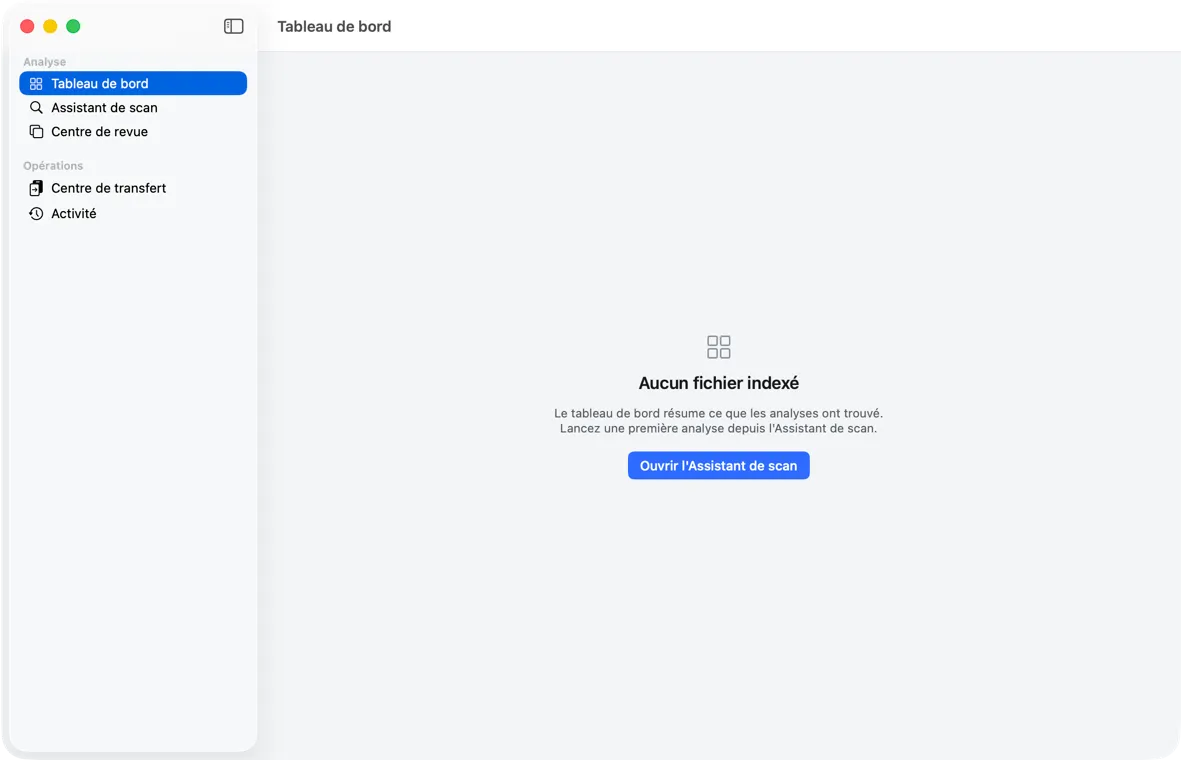 First launch: the catalog is created, empty, and the Dashboard invites you to run a first analysis.
Disk access and permissions
You choose what is read
The app never browses your disk on its own initiative. You choose each disk or folder to analyze in a macOS open panel (the “Choisir un dossier…” (Choose a folder…) or “Ajouter un dossier…” (Add a folder…) button of the Assistant de scan (Scan Assistant)). The panel says: “Disques ou dossiers à analyser. Rien n’y sera écrit.” (Disks or folders to analyze. Nothing will be written to them.)
Authorization bookmarks
When you choose a folder, the app saves an authorization bookmark in the catalog. This bookmark lets it find the folder again on later launches, even if the disk is mounted at a different place, without asking you to designate it again. If the bookmark can no longer locate the folder (disk absent, folder moved), the app says so (“Source non joignable” (Source unreachable)) rather than guessing a path.
One source per disk
You can declare only one source per volume (per disk or partition). But a source is not fixed:
- Widen it. With “Ajouter un dossier…” (Add a folder…), choose a folder that contains the source of this disk (its parent folder, or the whole disk): the source widens to that folder. The app says so (“La source « … » est élargie à « … » : son inventaire et vos décisions de revue sont conservés, aucun fichier n’est touché.” (meaning: The source “…” is widened to “…”: its inventory and your review decisions are kept, no file is touched.)); the next analysis reads only what is new.
- Remove it. The source’s “Retirer…” (Remove…) button removes it from the list, after confirmation (see chapter 3).
A folder next to the source, or a subfolder, is refused with the message “Ce volume a déjà une source” (This volume already has a source): “Le volume « … » a déjà une source (…). Choisissez un dossier qui contient les deux : la source s’élargira, son inventaire et vos décisions conservés. Ou retirez d’abord cette source.” (meaning: The volume “…” already has a source (…). Choose a folder that contains both: the source will widen, its inventory and your decisions kept. Or remove this source first.) To analyze two folders on the same disk, choose their parent folder, then use the exclusions (step 3 of the Assistant) to leave out what does not interest you.
Why this rule: the app detects missing files disk by disk. Two sources on the same disk would contradict each other, and analyzing one would make it look as if the files of the other had been deleted.
macOS permissions
The app is not “sandboxed” and does not ask for any particular permission at launch. Depending on the chosen location (removable volume, protected folder such as the Photos library), macOS may show its own access request; accept it so the analysis can read the files. This behavior has not yet been measured on the signed version.
Updates
Updates go through the standard Sparkle component.
- Automatic checking is disabled by default. As long as it is, the app contacts no server.
- To check on demand, choose Obscura Trace › “Rechercher les mises à jour…” (Check for updates…) in the menu bar (right after “À propos d’Obscura Trace” (About Obscura Trace)). The item is grayed out during a check or a download.
- To enable automatic checking, open the Réglages (Settings) (“Mises à jour” (Updates) section, “Rechercher automatiquement les mises à jour” (Automatically check for updates) switch). When enabled, it consults the list of published versions once a day, without sending anything about your photos or your catalog.
- An update that is found is never installed without your consent: it is presented to you and you decide.
- Each update is verified by a cryptographic signature before it is installed.
The latest version is downloaded from the Obscura member area: https://profil.obscuraflow.app/. With 0.1.0, “Rechercher les mises à jour…” reports that you have the latest version.