The Assistant de scan (Scan Assistant) declares the disks or folders to analyze (the sources), configures the analysis, starts it and shows its progress. The analysis only reads your files: it writes nothing to them, moves nothing and deletes nothing. Everything it learns is recorded in the catalog.
Overview
The Assistant has five steps, shown at the top as numbered badges:
- Sources
- Types de fichiers (File types)
- Exclusions
- Analyses
- Démarrage (Start)
You move forward with “Suivant” (Next) and back with “Précédent” (Previous). You can also click a badge: going back is always possible; going forward stops at the first incomplete step. When a step is blocking, the reason is shown next to the “Précédent” button.
Once the analysis has started, the Assistant shows the progress in five phases (not to be confused with the five configuration steps).
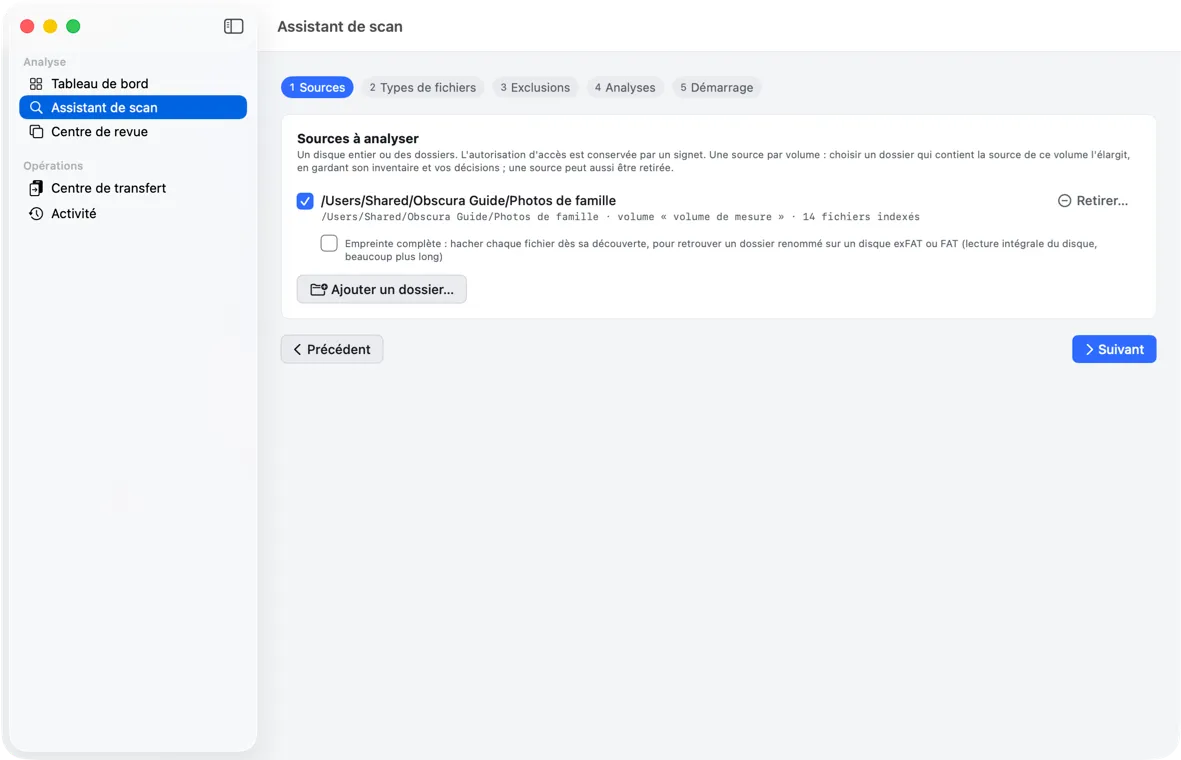 The five-step bar at the top; step 1, “Sources à analyser” (Sources to analyze), with one source checked.
Step 1 — Sources
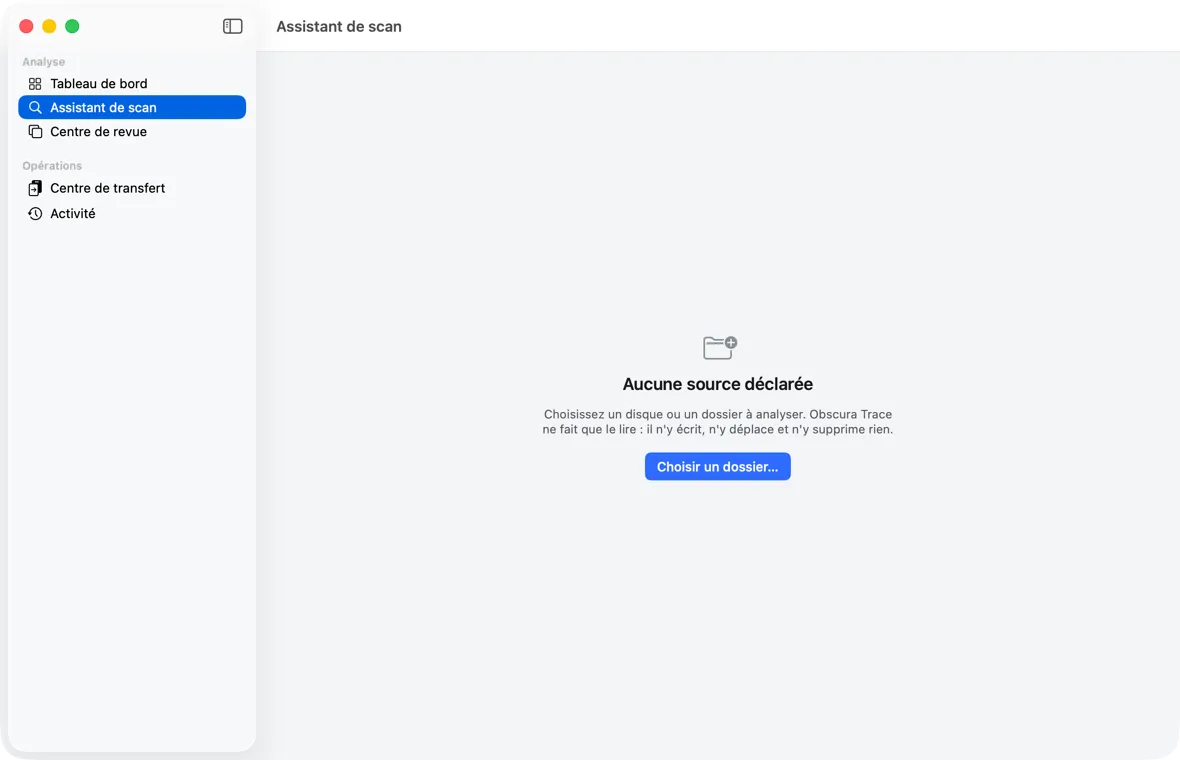 First use: no source declared.
First use. If there is no source yet, the screen shows “Aucune source déclarée” (No source declared): “Choisissez un disque ou un dossier à analyser. Obscura Trace ne fait que le lire : il n’y écrit, n’y déplace et n’y supprime rien.” (meaning: Choose a disk or folder to analyze. Obscura Trace only reads it: it writes nothing to it, moves nothing and deletes nothing.) Click “Choisir un dossier…” (Choose a folder…).
Afterward. The “Sources à analyser” (Sources to analyze) step lists the known sources, each with a checkbox:
- its name;
- its path (or “racine non joignable” (root unreachable) if the disk is absent), the volume name, the number of files already indexed, and “jamais analysée” (never analyzed) if that is the case.
The “Ajouter un dossier…” (Add a folder…) button opens the selection panel. You can select several folders or disks at once there; the confirmation button is called “Analyser” (Analyze). The panel does not let you create a folder.
Each chosen folder becomes a checked source. If one choice is refused, the others are still added, and the refusal is shown in red below the step, for example:
- “Ce volume a déjà une source” (This volume already has a source) — only one source per disk: choose a folder that contains it (it widens), or remove it first (see chapter 1);
- “Source utilisée par un travail non terminé” (Source used by an unfinished job) — an analysis or a transfer that is in progress, paused or interrupted concerns this source: let it finish or cancel it (from the Activité (Activity) screen if it is interrupted), then try again;
- “Volume jumeau monté” (Twin volume mounted) — two connected volumes carry the same identifier (see chapter 10).
Declaring an already known folder again does not create a duplicate: the app finds the source and renews its authorization. Choosing a folder that contains a source already declared on the same disk widens it: same source, same files, same review decisions; a blue message confirms it.
Under each source, the “Empreinte complète” (Full fingerprint) checkbox (unchecked by default) reads each file in full as soon as it is seen, so that a folder renamed on an exFAT or FAT disk can later be found again by its content. The next analysis takes much longer (on the order of 7 hours of computation for 10 TB, more on an old USB disk); without this option, unrecognized moves are proposed to you in the Centre de revue (Review Center) (see chapter 5).
To go to the next step, at least one source must be checked (“Choisissez au moins une source.” (Choose at least one source.)). If there is only one source, it is checked automatically.
Removing a source
The “Retirer…” (Remove…) button, to the right of each source, asks for confirmation (“Retirer la source « … » ?” (Remove the source “…”?); “Annuler” (Cancel) is the default button):
“Aucun fichier n’est touché sur le disque. Ses fichiers restent au catalogue, hors analyse, avec vos décisions de revue ; redéclarer son dossier, ou un dossier qui le contient, les retrouve.” (meaning: No file on the disk is touched. Its files stay in the catalog, outside the analysis, with your review decisions; declaring its folder again, or a folder that contains it, finds them again.)
After removal, the source leaves the list; its files are no longer counted on the Tableau de bord (Dashboard) (they are not “present on the analyzed sources”), but none is declared missing. A validated, unexecuted transfer plan that read this disk is canceled: prepare a new one. Removal is refused as long as an unfinished analysis or transfer concerns the source.
To replace a source with another folder on the same disk: remove it, then add the new folder.
The options of the last analysis
When you reopen the Assistant on a source that has already been analyzed — even after quitting the app — the types, exclusions, analyses and number of files read simultaneously are those of its last finished analysis. If you change them, the summary (step 5) shows in orange what differs, for example “« Photos », par rapport à sa dernière analyse — types retirés : XMP” (“Photos”, compared with its last analysis — types removed: XMP). A removed type or an added exclusion takes files out of the analysis: they become “hors des règles” (outside the rules), never missing, and are no longer transferred.
Step 2 — File types
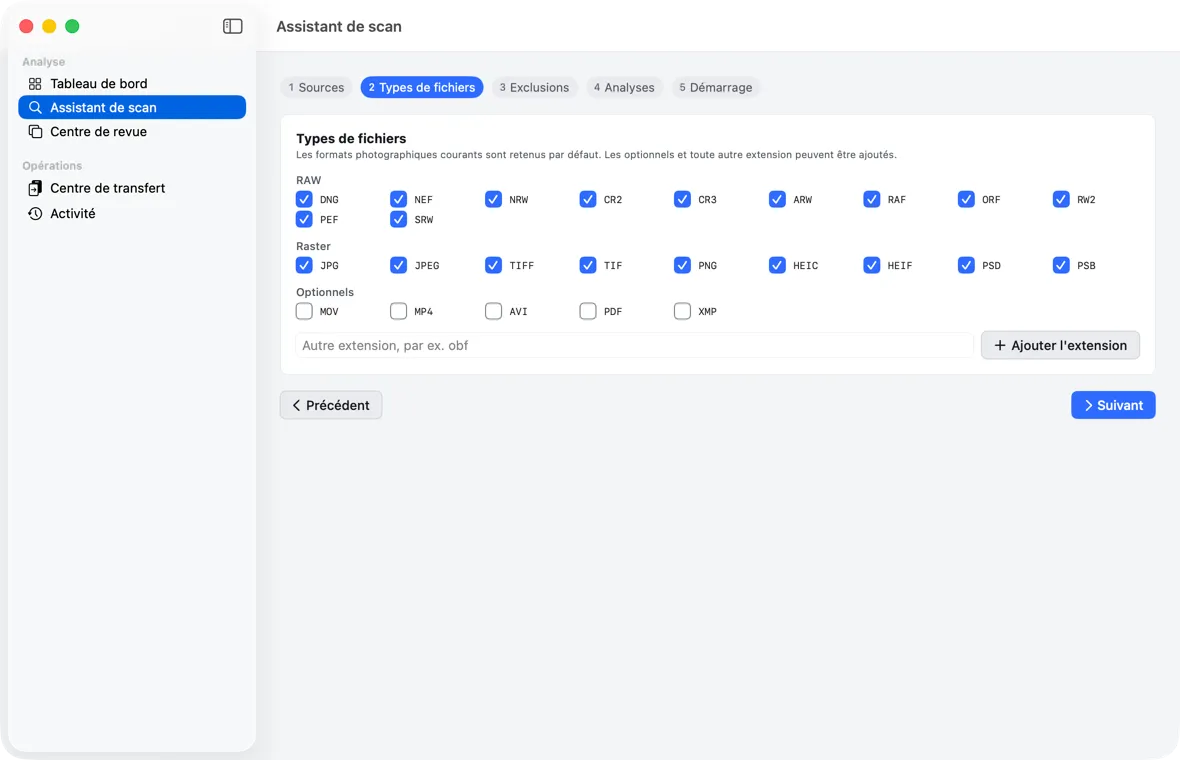 Step 2: the extensions to inventory.
Check the extensions to inventory. By default, photographic formats are selected:
| Group | Extensions | Default |
|---|---|---|
| RAW | DNG, NEF, NRW, CR2, CR3, ARW, RAF, ORF, RW2, PEF, SRW | checked |
| Raster | JPG, JPEG, TIFF, TIF, PNG, HEIC, HEIF, PSD, PSB | checked |
| Optionnels (Optional) | MOV, MP4, AVI, PDF, XMP | unchecked |
To add another extension, type it in the “Autre extension, par ex. obf” (Other extension, e.g. obf) field, then “Ajouter” (Add) (or Return). It appears in an “Ajoutées” (Added) group. The leading dot is optional; an entry containing a space or a “/” is refused: “« … » n’est pas une extension de fichier.” (“…” is not a file extension.)
At least one type must remain checked (“Retenez au moins un type de fichier.” (Select at least one file type.)).
XMP files and companions. The XMP editing files next to your RAW files are recognized as companions and travel with their main file during a transfer — provided they are inventoried: check “XMP” if your RAW files have them, and leave “Extraction des métadonnées” (Metadata extraction) checked in step 4 (see chapter 9).
Step 3 — Exclusions
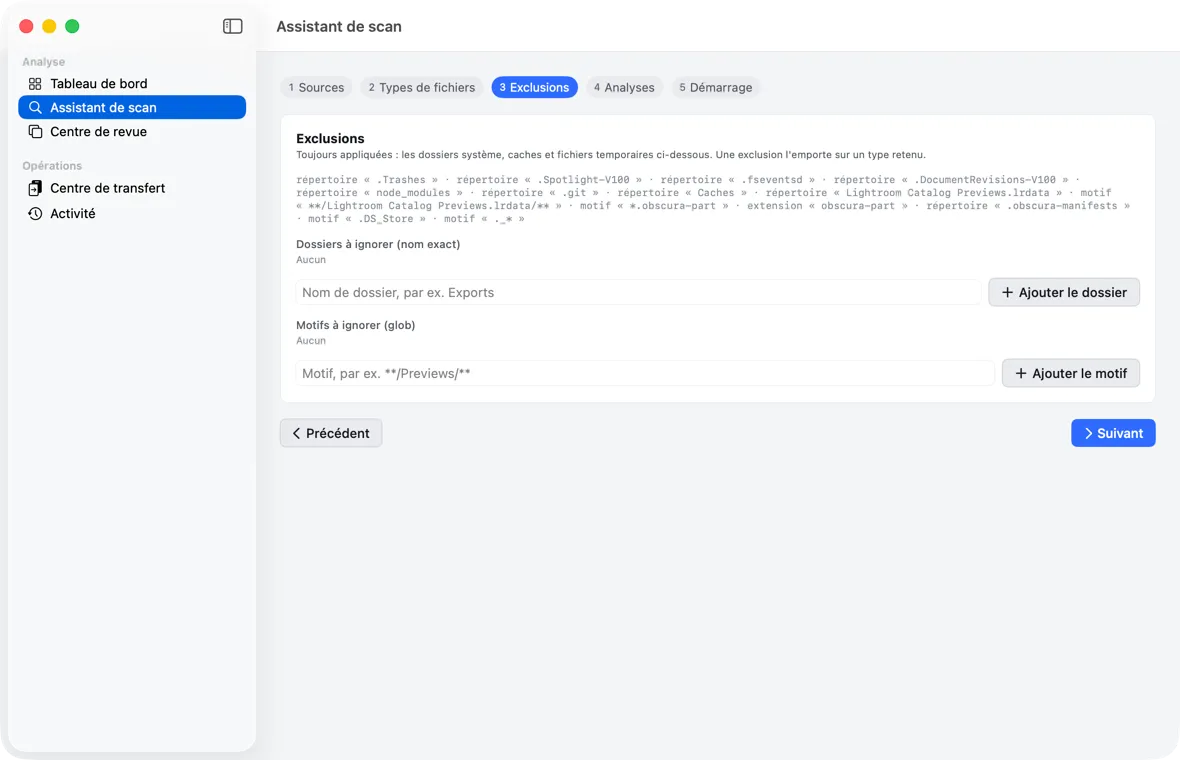 Step 3: the folders and patterns excluded from the inventory.
Some exclusions are always applied and shown in gray: system folders and caches (.Trashes, .Spotlight-V100, .fseventsd, .DocumentRevisions-V100, node_modules, .git, Caches), Lightroom catalog previews (Lightroom Catalog Previews.lrdata), the app’s temporary files (.obscura-part), consolidation manifests (.obscura-manifests), .DS_Store and the AppleDouble ._* files that macOS creates on non-Apple disks.
You can add more:
- “Dossiers à ignorer (nom exact)” (Folders to ignore (exact name)): a folder name, without “/”, for example
Exports(“Nom de dossier, par ex. Exports” (Folder name, e.g. Exports)). Any folder with that name, at any depth, is ignored. - “Motifs à ignorer (glob)” (Patterns to ignore (glob)): a pattern, for example
**/Previews/**.
The “–” button to the right of an entry removes it. An exclusion always overrides a selected type: a JPEG located in an excluded folder is not inventoried.
Step 4 — Analyses
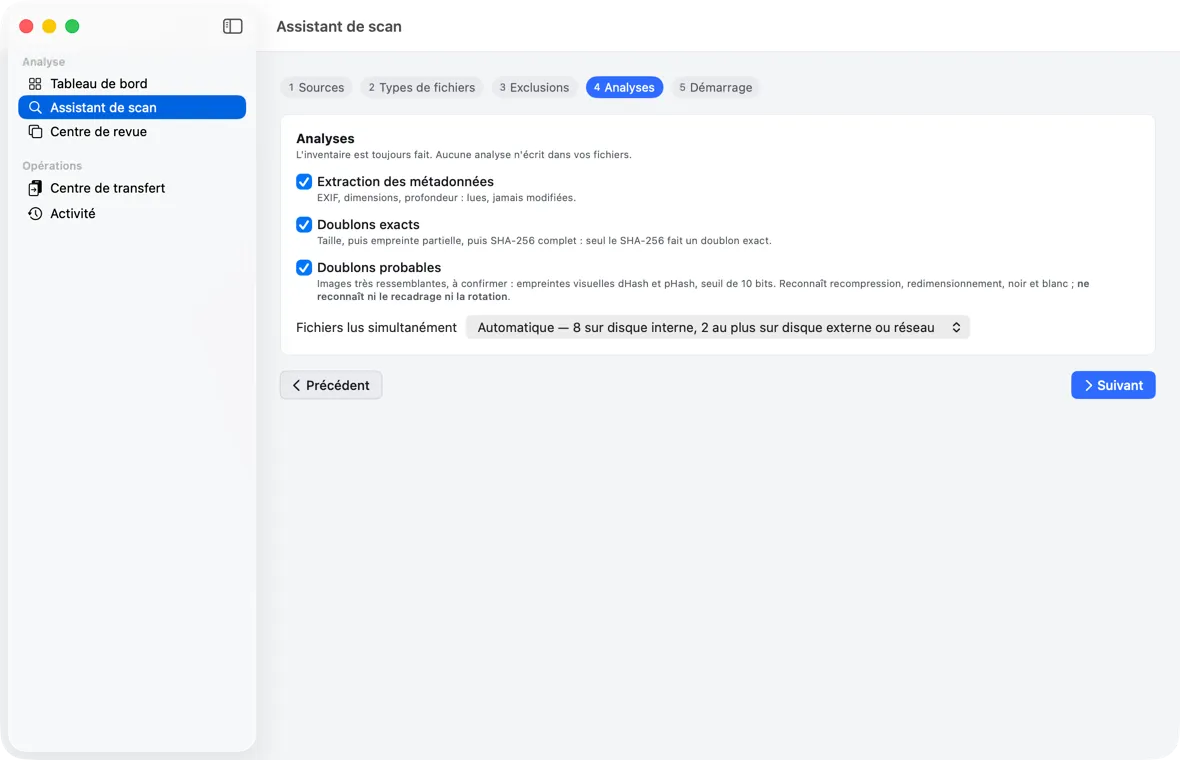 Step 4: the additional analyses and the number of files read simultaneously.
“L’inventaire est toujours fait. Aucune analyse n’écrit dans vos fichiers.” (The inventory is always done. No analysis writes to your files.) Three additional analyses, all checked by default:
| Analysis | What it does |
|---|---|
| Extraction des métadonnées (Metadata extraction) | Reads EXIF, dimensions, bit depth: read, never modified. |
| Doublons exacts (Exact duplicates) | Compares sizes, then a partial fingerprint, then the full SHA-256 fingerprint. Only an identical SHA-256 makes an exact duplicate. |
| Doublons probables (Probable duplicates) | Very similar images, to be confirmed: computes two visual fingerprints (dHash and pHash), 10-bit threshold. Recognizes recompression, resizing, conversion to black and white; recognizes neither cropping nor rotation. |
The “Fichiers lus simultanément” (Files read simultaneously) setting is “Automatique” (Automatic) by default: the app chooses based on your Mac, and reads at most 2 files at a time on an external or network disk (reading more at once slows down a hard disk drive). You can set a value from 1 up to the number of cores of your Mac, 8 at most.
Step 5 — Start
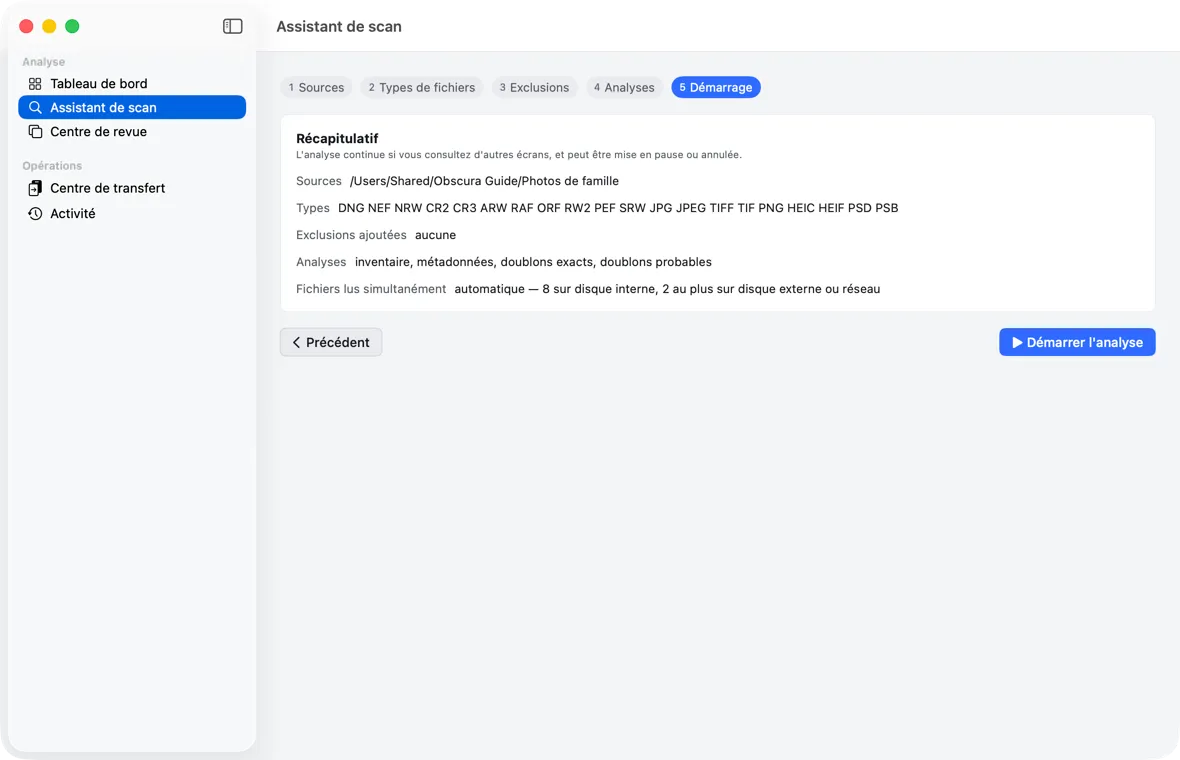 Step 5: the summary before “Démarrer l’analyse” (Start analysis).
The “Récapitulatif” (Summary) step recalls the sources, the types, the added exclusions, the selected analyses and the files read simultaneously (“automatique — …” (automatic — …) or the chosen number), then what differs from the last analysis of each source. “L’analyse continue si vous consultez d’autres écrans, et peut être mise en pause ou annulée.” (The analysis continues if you view other screens, and can be paused or canceled.)
Click “Démarrer l’analyse” (Start analysis).
Following the analysis: the five phases
The screen shows “Analyse en cours” (Analysis in progress), the job identifier (“Job …”, selectable so you can copy it), then one line per phase:
| Phase | Technical name | Counter |
|---|---|---|
| Parcours des fichiers (Browsing files) | Scanning filesystem | files |
| Lecture des métadonnées (Reading metadata) | Reading metadata | files read |
| Hachage (Hashing) | Hashing | fingerprints |
| Analyse des images (Analyzing images) | Analyzing images | images |
| Index de similarité (Similarity index) | Building similarity index | operations |
Each line has its own state — “En attente” (Waiting), “En cours” (In progress), “En pause” (Paused), “Terminée” (Finished), “Non demandée” (Not requested) (analysis unchecked in step 4), “Arrêtée” (Stopped) — and its own counter. There is no overall percentage. A phase shows a percentage and a progress bar only when its total is known — metadata reading knows it as soon as browsing ends (“1 200 / 3 011 fichiers lus · 39 %” (1,200 / 3,011 files read · 39%)); otherwise, only the count (“12 493 fichiers” (12,493 files)) and an endlessly animated bar.
You can leave the screen: the analysis continues, and the Tableau de bord (Dashboard) shows its totals as “en cours d’établissement” (being established).
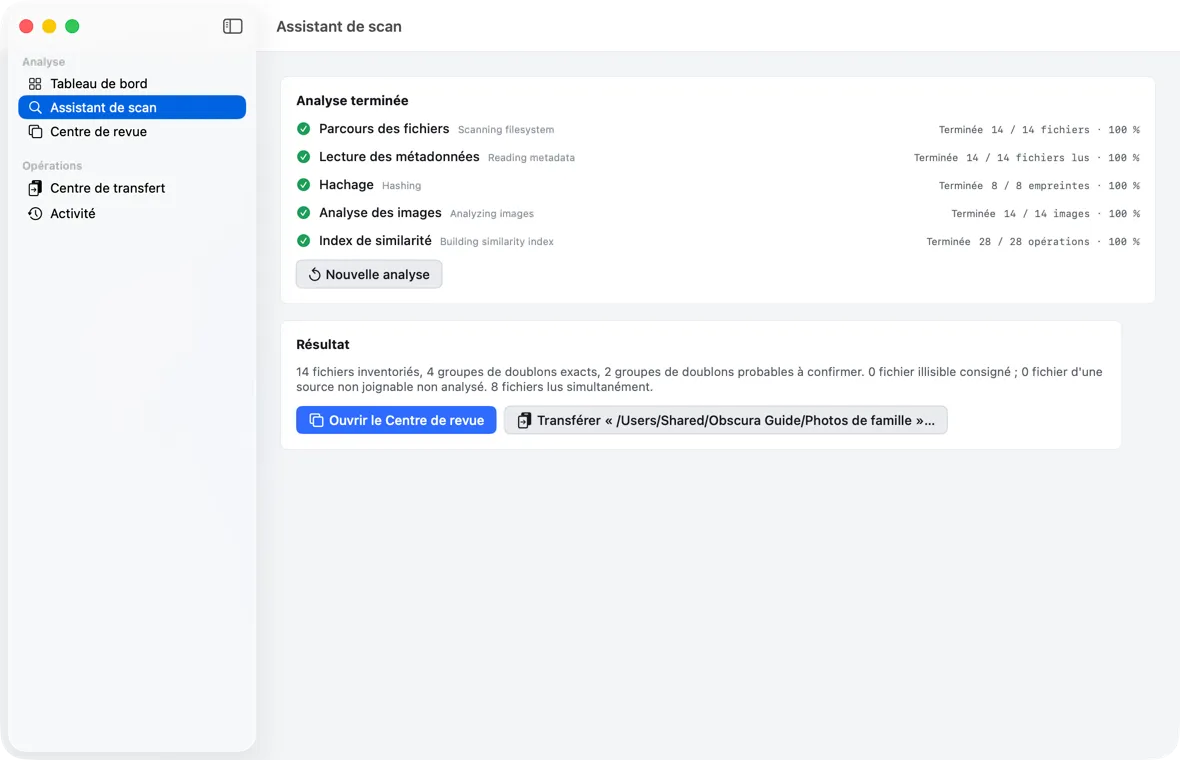 End of an analysis: the five phases finished, each with its counter, then the result and its two next steps (Review Center, transfer).
Pause, resume, cancel
- “Pause”: the analysis stops at the end of the current batch of files; the title becomes “Analyse en pause” (Analysis paused), the phase that was in progress reads “En pause” (Paused) and its bar stops animating.
- “Reprendre” (Resume): it starts again where it left off.
- “Annuler l’analyse” (Cancel analysis): it stops; the title becomes “Analyse annulée” (Analysis canceled) and the unfinished phases switch to “Arrêtée” (Stopped).
“Les lots déjà enregistrés sont conservés ; aucun fichier n’est touché.” (Batches already recorded are kept; no file is touched.) An analysis restarted later resumes the inventory where it left off (incremental scan).
If a command is refused, a message is shown in red: “Pause refusée : …” (Pause refused: …), “Reprise refusée : …” (Resume refused: …), “Annulation refusée : …” (Cancellation refused: …).
One analysis at a time: as long as an analysis is in progress or paused, “Démarrer l’analyse” (Start analysis) does not create a second one (“L’analyse n’a pas pu être créée : un job SCAN est déjà en cours …” (The analysis could not be created: a SCAN job is already in progress …)), and a double click starts only one.
Quitting during an analysis (⌘Q, or while paused) opens the alert “Quitter interrompra le travail en cours” (Quitting will interrupt the work in progress); “Annuler” (Cancel) is the default button. Closing the window does not quit the app while the analysis is running: reopen it from the Dock. Idle sleep of the Mac is held off during the analysis. An analysis that was quit — even while paused — is offered at the next launch, in the Activité (Activity) screen, as an interrupted analysis.
End of the analysis
At the end, the title becomes “Analyse terminée” (Analysis finished) and a “Résultat” (Result) card summarizes:
“N fichiers inventoriés, N groupes de doublons exacts, N groupes de doublons probables à confirmer. N fichiers illisibles consignés ; N fichiers d’une source non joignable non analysés. N fichiers lus simultanément.” (meaning: N files inventoried, N exact duplicate groups, N probable duplicate groups to confirm. N unreadable files logged; N files from an unreachable source not analyzed. N files read simultaneously.)
Each count agrees in number: “0 fichier illisible consigné” (0 unreadable files logged), “1 groupe de doublons probables” (1 probable duplicate group).
Unreadable files are counted once each, and only those from the sources of this analysis: it is the same number as the “Fichiers corrompus” (Corrupted files) filter of the Centre de revue (Review Center) for those sources.
Below this summary, one warning line for each thing the analysis did not see — never passed over in silence:
- “N source(s) non joignable(s), non analysée(s) : nom. Rien n’y est déclaré disparu ; rebranchez le volume puis relancez.” (N source(s) unreachable, not analyzed: name. Nothing there is declared missing; reconnect the volume, then run again.) The other checked sources are analyzed normally.
- “N dossier(s) non lisible(s) (permissions ou lecture) : chemin. Leur contenu n’est ni inventorié ni transféré, et rien n’y est déclaré disparu.” (N unreadable folder(s) (permissions or read): path. Their content is neither inventoried nor transferred, and nothing there is declared missing.) Give yourself read permission on that folder (Finder, Get Info), then run again.
- “N paquet(s) ou bibliothèque(s) non parcouru(s) : nom. Leur contenu appartient à l’application qui les gère ; il n’est jamais transféré.” (N package(s) or library(ies) not browsed: name. Their content belongs to the app that manages them; it is never transferred.) A Photos, Aperture, iPhoto, Lightroom or Capture One library, or any folder that macOS presents as a single file, is not opened: moving its originals would corrupt the library.
- “N fichier(s) déjà inventorié(s) hors des règles de cette analyse : conservé(s) au catalogue, exclu(s) des transferts.” (N already inventoried file(s) outside the rules of this analysis: kept in the catalog, excluded from transfers.) For example after unchecking a type: these files are not “missing”; check the type again to find them again.
The Activité (Activity) screen keeps the same information, with the name of the source.
Two kinds of buttons:
- “Ouvrir le Centre de revue” (Open the Review Center) to review the groups found (chapter 5);
- “Transférer « source name »…” (Transfer “source name”…), one per analyzed source, to prepare its copy or move (chapter 6).
“Nouvelle analyse” (New analysis) returns to step 1.
If the analysis fails, the title becomes “Analyse en échec — reason” (Analysis failed — reason) and the message is shown in red (for example “Source non joignable” (Source unreachable): “Le disque « AUDITEXFAT » n’est pas branché. Branchez-le, ou décochez cette source.” (meaning: The disk “AUDITEXFAT” is not connected. Connect it, or uncheck this source.) — or, if the source is a folder on the disk, “… ou le dossier « … » a été déplacé ou renommé.” (… or the folder “…” has been moved or renamed.)). The technical detail is logged in the Activité (Activity) screen.
Running an analysis again
Running an analysis again on an already analyzed source does not re-inventory unchanged files (incremental scan). In this version, the hashing phase still reads again some of the files already analyzed, those that share their size with another file: on a large collection, a second analysis may read a large part of the files again (see chapter 12). The results remain correct. Running an analysis again is also what makes it possible to detect missing files and those you moved or renamed outside the app (see chapter 9).
A file is declared missing only if the analysis read its folder and did not find it there. A file that the analysis could not see (a folder that became unreadable, a disk that drops out) keeps its state; a file that the rules of this analysis leave out is “hors des règles” (outside the rules), not missing.
After each analysis, the duplicate groups and recommended masters are recomputed over the whole catalog. Your review decisions are kept, attached to the files themselves.